Import Project From File
Use the Import Project From File wizard to upload and deploy projects directly from a file or document management system.
What is "Import Project From File"?
The Import Project From File feature in Synergy IDE allows users to bring in previously exported projects and set them up quickly in their current workspace. It supports import from both local computer and document management.
This wizard is especially useful when transferring solutions between environments (e.g., test → production), restoring backups, or working with externally prepared projects.
Steps to Import a Project
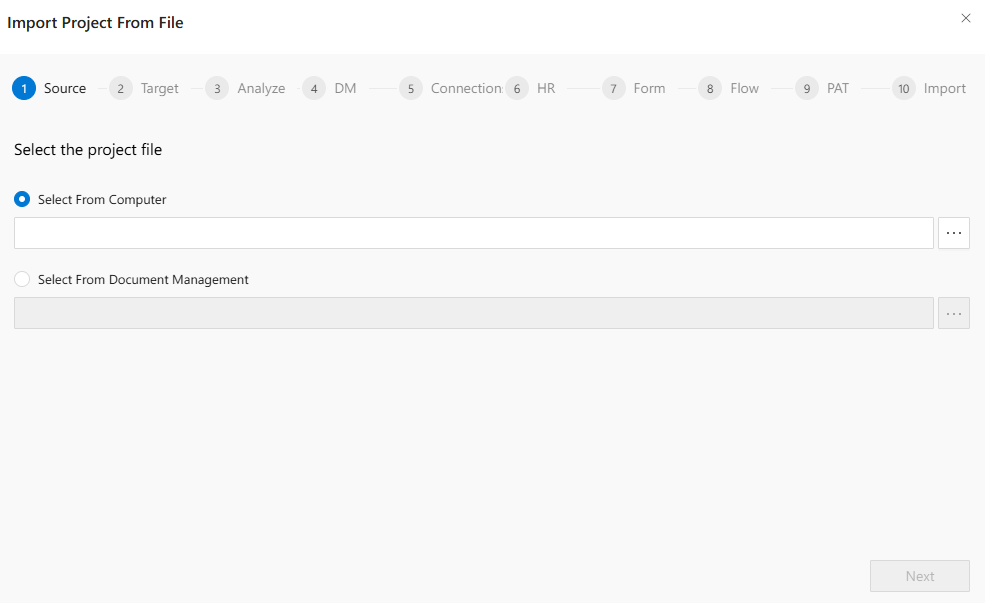
The wizard consists of 10 clearly labeled steps to guide you through a successful project import:
- Source – Choose the file source.
- Target – Define where the project will be placed.
- Analyze – Review the contents of the project.
- DM – (Optional) Handle document management settings.
- Connection – Map external system connections.
- HR – Configure human resources-related settings.
- Form – Import and validate forms.
- Flow – Handle process flows and automation.
- PAT – Configure permissions and access tokens.
- Import – Finalize and deploy the imported project.
Step 1: Select the Project File
You can start by selecting the project file using one of two options:
-
Select From Computer
Choose a.zipfile stored locally on your device. Click the three dots (...) to open your file browser. -
Select From Document Management
#import(DeveloperGuides.IDE.Modals.SelectFolder)
Once you’ve selected a valid file, click Next to proceed.
Use Cases
- Migrate a project from a test environment to live production.
- Restore a previously backed-up project file.
- Share pre-built form and workflow sets across teams.
Best Practices
- Always review each step of the wizard to ensure compatibility (especially connections and flow logic).
- Validate the version of the imported project matches your current IDE release.
- Use consistent naming and path structures to avoid confusion or conflicts.
See Also
FAQs
- What file formats are supported for import?
- Is the import option available to all users?
- Does importing a project overwrite existing projects?